






how to turn off read receipts iphone: Global and Per-Chat Steps If you are looking for how to turn off read receipts iphone, open Settings, go to Apps > Messages, and switch off Send Read Receipts. This stops read confirmations by default in eligible iMessage conversations, while allowing separate preferences for individual contacts. What Read […]
how to turn off read receipts iphone: Global and Per-Chat Steps
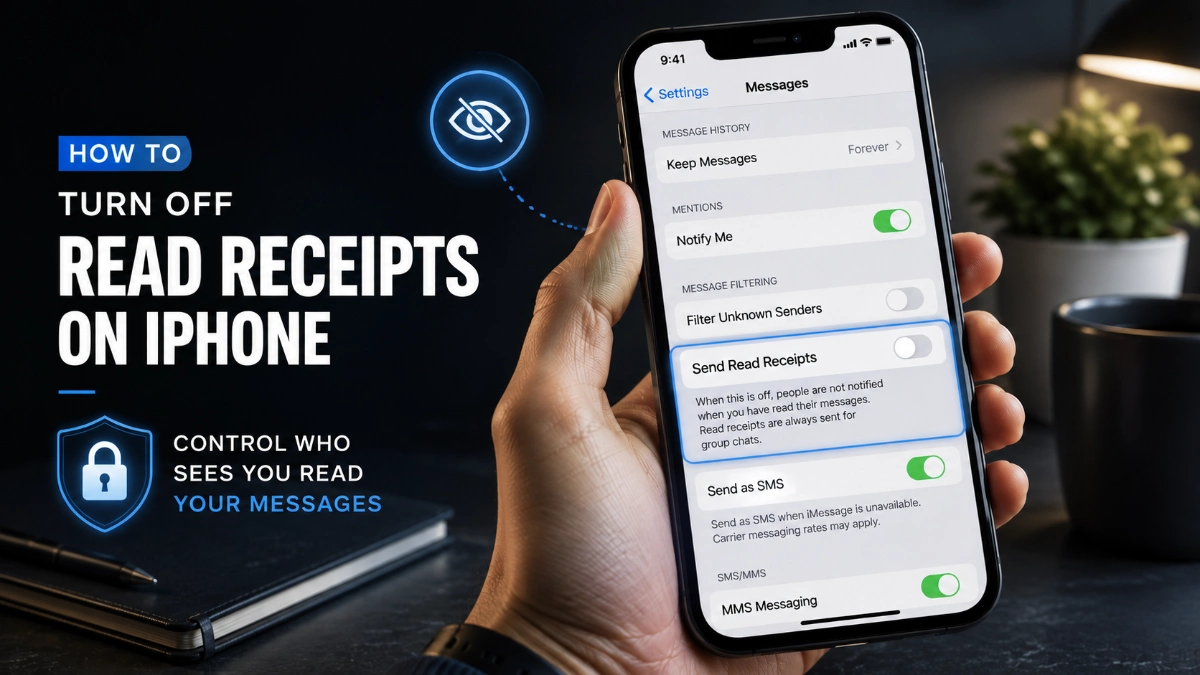
If you are looking for how to turn off read receipts iphone, open Settings, go to Apps > Messages, and switch off Send Read Receipts. This stops read confirmations by default in eligible iMessage conversations, while allowing separate preferences for individual contacts.
What Read Receipts Mean in Messages
Read receipts tell another person that you opened their message. When they are enabled, the sender may see Read beneath an iMessage rather than only Delivered.
They apply to Apple’s iMessage conversations, which commonly use blue message bubbles. They do not control regular SMS/MMS texts, which commonly appear as green bubbles, or messages sent through apps such as WhatsApp, Instagram, or Messenger.
how to turn off read receipts iphone for All Conversations
Use the main Messages setting when you want read receipts off by default for the people you message.
- Open the Settings app.
- Tap Apps.
- Tap Messages.
- Find Send Read Receipts.
- Turn the switch off.
That is the simplest answer to how to turn off read receipts iphone when you want a broad privacy setting. On earlier iOS versions, Messages may appear directly in Settings instead of inside Apps.
Turning this switch off affects conversations whose read-receipt preference has not been changed individually. A separate preference in a specific chat can take priority over this main setting.
Disable Read Receipts for One Contact
You can decide that one person should not see read confirmations even if the general setting remains on. To use how to turn off read receipts iphone for one conversation:
- Open the Messages app.
- Open the conversation.
- Tap the contact name or icon at the top.
- Turn off Send Read Receipts.
This setting lets you handle read receipts conversation by conversation. For example, you can keep the main setting off but turn receipts on for one trusted contact, or keep the main setting on while turning them off for someone else.
What Changes After You Turn Them Off
When you use how to turn off read receipts iphone, the sender can still usually see that their iMessage reached your device through the Delivered label. They should not see the Read label or the time you opened the message.
This does not block the sender, prevent messages from arriving, remove a conversation, or silence notifications. It also does not manage typing indicators, which are a separate Messages feature.
Which Messages Are Affected?
The setting behind how to turn off read receipts iphone is specific to eligible one-to-one iMessage conversations.
| Conversation type | Read receipt setting applies? | What to know |
| One-to-one iMessage, usually blue bubbles | Yes | You can set it globally or per contact. |
| SMS/MMS, usually green bubbles | No | The Messages read-receipt switch does not apply. |
| Group conversation | No | Read receipts are not available in group chats. |
| WhatsApp, Instagram, Messenger, and similar apps | No | Each app has its own privacy settings. |
Check a Specific Conversation
If you want to understand how to turn off read receipts iphone without changing every conversation, check the setting inside the relevant chat. A contact-level setting can override the general Messages preference.
Open the conversation, tap the name or contact icon at the top, and look for Send Read Receipts. Switch it off to stop sharing read confirmations with that contact, or switch it on if you want that person to receive them.
If You Cannot Find the Setting
First, make sure you are looking in Settings > Apps > Messages. If you use an earlier iOS version, look for Messages directly within Settings.
For a particular person, open their message thread and tap the contact icon at the top. You may also be able to open the person’s contact card in the Contacts app and look for the Messages-related read-receipt control.
If the conversation has green bubbles, it is a standard SMS/MMS chat, so Apple’s iMessage read-receipt setting will not apply. Confirm that iMessage is available for the conversation before expecting the option to appear.
If “Read” Still Appears
If someone still sees a read confirmation after you followed how to turn off read receipts iphone, review that individual conversation’s settings. The contact may have a separately enabled preference that continues to share read receipts.
Turn off Send Read Receipts in the chat itself, then return to Settings > Apps > Messages and verify that the main switch is also off. If the setting does not update as expected, close and reopen Messages, restart the iPhone, and install any available iOS update.
More Ways to Manage Messages Privacy
Read receipts are only one privacy control in Messages. Consider these additional options:
- Use Hide Alerts for a conversation when you want to stop its notifications without deleting the chat.
- Adjust notification previews if you do not want message content visible on your Lock Screen.
- Filter messages from unknown senders if you receive frequent unwanted texts.
- Block a sender when you want to stop messages from that number or contact.
Quick Answer
For how to turn off read receipts iphone across iMessage conversations, go to Settings > Apps > Messages and switch off Send Read Receipts. For one conversation only, open the chat, tap the contact icon, and disable the same setting there.
You can turn read receipts back on at any time, either for all eligible conversations or for a selected contact.
Frequently Asked Questions
Yes. Open that person’s iMessage conversation, tap their contact name or icon at the top, and turn off Send Read Receipts for that chat.
They may still see Delivered, which indicates the message reached your device. They should not see Read or the time you opened it.
No. Green bubbles generally indicate SMS/MMS messages, which do not use Apple’s iMessage read-receipt controls.
No. Read receipts are not available in group conversations.
No. Read receipts and notifications are separate settings. Use Hide Alerts or Messages notification settings if you want fewer alerts.
No. Third-party messaging apps have their own read-receipt and privacy controls.
The conversation may be an SMS/MMS thread rather than iMessage, or the option may be located in a different place depending on the iOS version. Check that the chat is using iMessage and review the contact information at the top of the thread.
Yes. You can re-enable them globally in Settings > Apps > Messages or for a particular contact from that conversation’s details.