






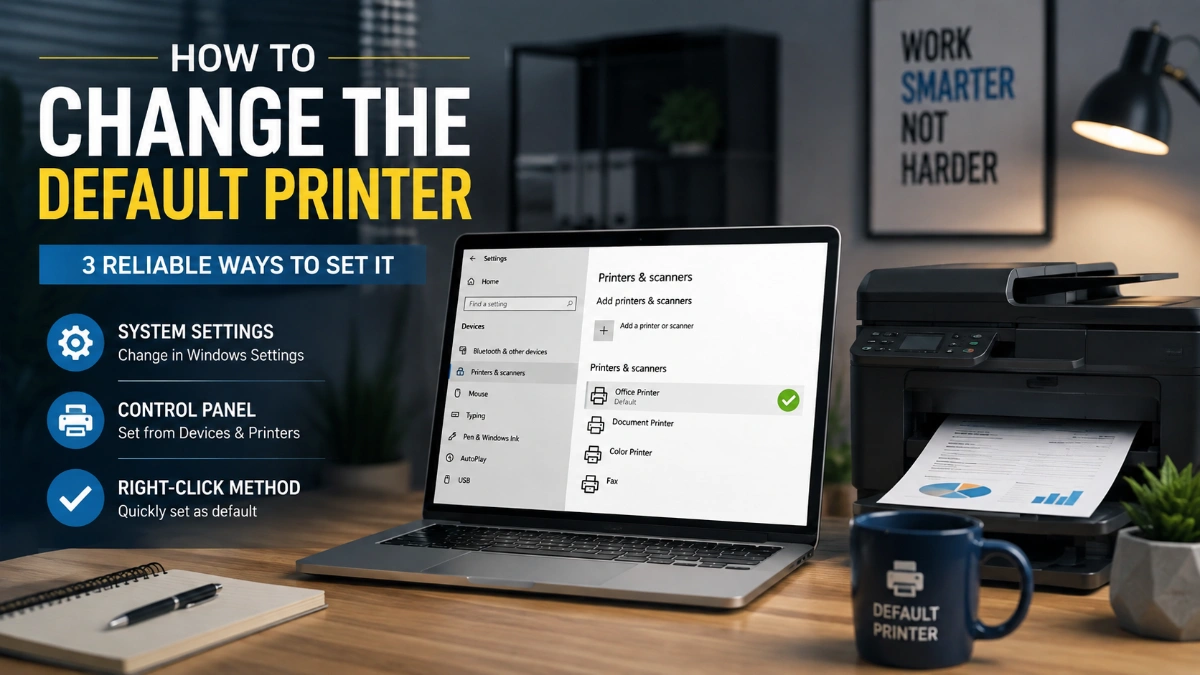
how to Change the Default Printer: Windows, Mac, and Chromebook Guide A default printer is the printer your computer or Chromebook selects first when you open the print dialog. Set one named printer when you want a consistent choice, or use the “last printer used” option if your usual printer changes by location. Pick the […]
how to Change the Default Printer: Windows, Mac, and Chromebook Guide
A default printer is the printer your computer or Chromebook selects first when you open the print dialog. Set one named printer when you want a consistent choice, or use the “last printer used” option if your usual printer changes by location.
Pick the right method
Use the option that matches how you print:
| If you want to… | Choose this setting |
| Always print to one home or office printer | Set that named printer as the default |
| Print to different devices in different places | Let Windows use the last printer used, or use Last Printer Used on a Mac |
| Save documents as files instead of printing paper | Select a PDF destination when needed rather than making it your everyday default |
| Print from a Chromebook | Save the chosen printer to your Chromebook profile |
The operating-system default controls the printer normally selected first. A particular app can still remember a prior choice or let you select another printer for an individual job.
Windows 11 and 10
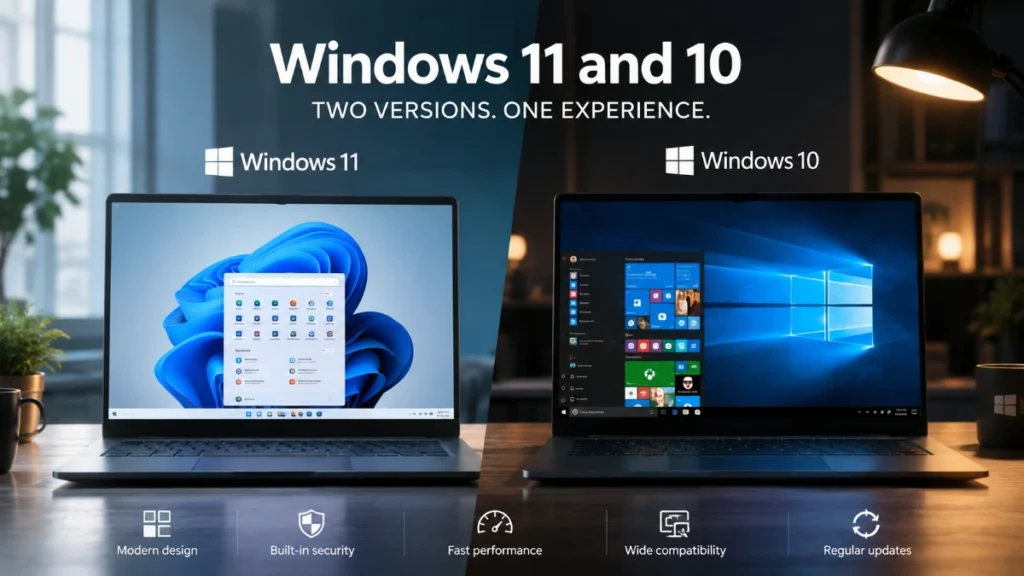
To how to change the default printer settings in Windows, first decide whether you want one fixed printer or the last printer you used.
Set one fixed printer
- Open Start > Settings > Bluetooth & devices > Printers & scanners.
- Under Printer preferences, turn off Let Windows manage my default printer.
- Select the printer you want.
- Choose Set as default.
- Confirm that the printer status changes to Default.
This is the best choice when you routinely print to the same physical printer. If the Set as default button does not appear, check again that Windows automatic printer management is turned off.
Use the last printer instead
For people who print in more than one location, Windows can choose the printer used most recently.
- Open Settings > Bluetooth & devices > Printers & scanners.
- Under Printer preferences, turn on Let Windows manage my default printer.
With this option enabled, Windows can select the last printer used. On supported mobile Windows devices, the selection can also change after the device moves to another location.
Mac
To how to change the default printer preferences on a Mac, choose a named printer for consistency or select Last Printer Used for flexibility.
- Open the Apple menu > System Settings.
- Select Printers & Scanners.
- Open the Default printer menu.
- Choose the printer you want to be preselected when you print.
Choose a named printer if you want one fixed default. Choose Last Printer Used if you want macOS to remember the printer last used at a network location, such as your home Wi-Fi or workplace network.
You can also Control-click a printer in the printer list and select Set Default Printer.
Chromebook
To how to change the default printer settings on a Chromebook, save the printer to your Chromebook profile.
- Turn on the printer.
- Connect the printer and Chromebook to the same internet network, or connect a compatible printer by USB.
- Select the time in the bottom-right corner and open Settings.
- Under Device, scroll to Printers and scanners, then select Print.
- Under Other available printers, select Save next to the printer.
- Check that it appears at the top of Your saved printers.
A printer saved to the Chromebook profile becomes the default. If your printer is not shown, open the print dialog with Ctrl + P, choose the destination menu, select See more, and choose the printer; the Chromebook checks its compatibility when you select it.
Chromebooks support compatible printers connected through the internet or USB, but not Bluetooth printing.
Check it worked
After you learn how to change the default printer settings, open a document and select Print. Your preferred device should appear first in the printer or destination field.
If it does not, close and reopen the application. The operating-system default may be correct while the app continues to show a printer it previously used. Select the desired printer for that job, then look for an app-specific setting if the behaviour persists.
When the printer changes back
A default printer can change for reasons that differ by device.
| Symptom | Likely cause | What to do |
| Windows selects another printer | Windows is managing the choice automatically | Turn off Let Windows manage my default printer, then set the named printer as default |
| Mac changes printers between home and work | Last Printer Used is selected | Choose a named printer in Printers & Scanners |
| Chromebook cannot find the printer | It is not on the same network, not connected by USB, or not compatible | Reconnect it, check compatibility, then select or save it again |
| Printer stays selected but will not print | The printer is offline or unavailable | Restore its power, cable, Wi-Fi, or network connection |
When you how to change default printer options, the printer still needs to be installed, powered on, and reachable before it can receive a job.
Avoid these mistakes
- Leaving Windows automatic management enabled while expecting one printer to stay selected.
- Choosing Last Printer Used on a Mac when you want the same printer everywhere.
- Setting a virtual PDF destination as the everyday default; it usually opens a save workflow instead of sending the job to a physical printer.
- Removing an old printer queue on a work or school device without checking with the IT administrator; managed printers may be required or added back automatically.
- Treating paper size, colour, or double-sided preferences as default-printer settings. Those are printer or print-job preferences, not the device selected by default.
If the printer is missing
Before changing how to change the default printer settings, make sure the printer appears in the device’s printer list.
- Turn on the printer and check its screen or status light for an error.
- Confirm Wi-Fi printers and the computer are using the intended network.
- For USB printers, reconnect the cable and follow any on-screen setup prompts.
- Add the printer again through the operating system if it is not listed.
- On a company or school device, ask the IT administrator before deleting, reinstalling, or changing a managed printer.
Known more: How to Change the Default Printer: 4 Simple Steps for Windows, Mac, and Chromebook
Frequently Asked Questions
Windows can automatically choose the last printer you used when Let Windows manage my default printer is enabled. Turn that option off if you want one named printer to remain the default.
The default printer is the device selected first in a print dialog. Print preferences control options such as paper size, colour, print quality, and double-sided printing.
Usually, an app lets you choose a printer for an individual job, and some apps remember that selection. The operating-system default remains the usual starting choice for other apps.
Your Mac may be set to Last Printer Used, which remembers a different printer for each network location. Select a named printer in Printers & Scanners if you want one consistent default.
Save the printer in Settings > Device > Printers and scanners > Print. A printer saved to your Chromebook profile becomes the default.
No. Use a compatible printer connected through the internet or a USB cable.
Check your connection first, then contact your IT administrator if the printer is managed by your company or school. Avoid removing managed printer queues unless the administrator instructs you to do so.