






how to delete stickers on iphone: 4 Powerful Fixes for Unwanted Stickers If you are searching for how to delete stickers on iphone, start by identifying where the sticker appears. A saved Live Sticker, a sticker placed on a message, a Memoji sticker set, and a downloaded sticker app each need a different removal method. […]
how to delete stickers on iphone: 4 Powerful Fixes for Unwanted Stickers
If you are searching for how to delete stickers on iphone, start by identifying where the sticker appears. A saved Live Sticker, a sticker placed on a message, a Memoji sticker set, and a downloaded sticker app each need a different removal method.
Start with the right sticker type
Use this quick guide before changing anything:
| Sticker location | What it is | What to do |
| Your saved Stickers menu | A custom sticker made from a photo or Live Photo | Delete it through the Photos app’s sticker controls |
| On top of a text-message bubble | A sticker attached to one message | Open Sticker Details for that message bubble |
| In the Memoji sticker collection | Stickers generated by a Memoji character | Delete the Memoji character |
| In an app-based sticker pack | Stickers supplied by an iMessage app | Turn off the iMessage app or delete the app |
Delete a saved Live Sticker
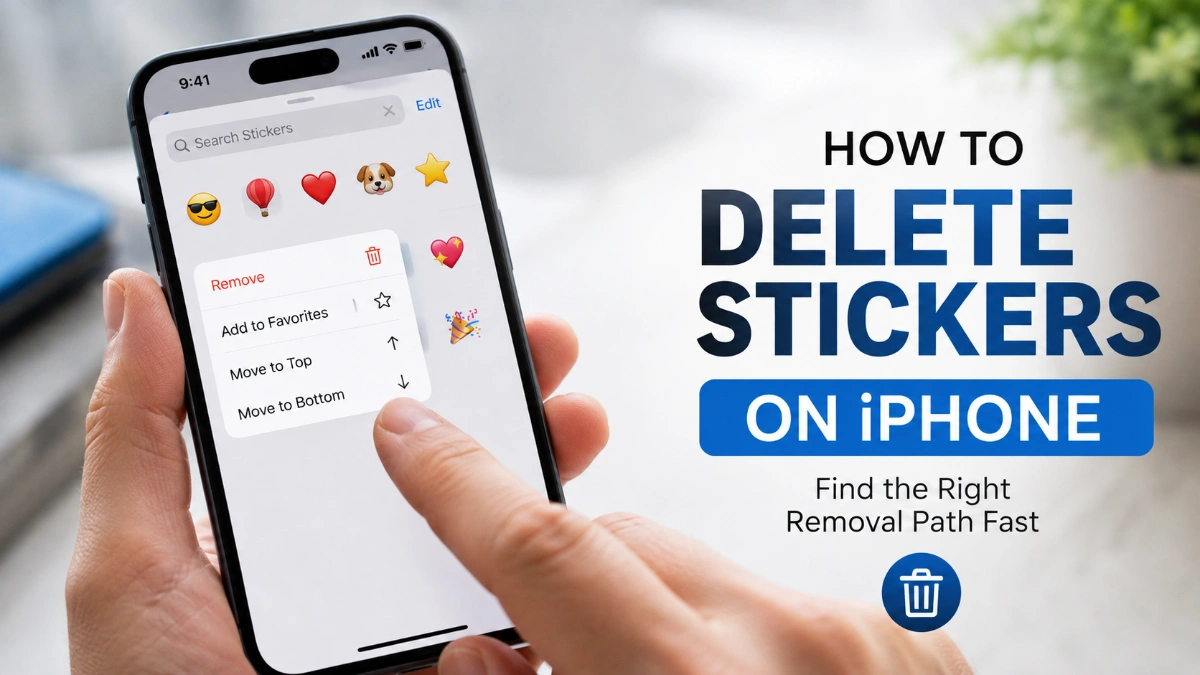
For most users, how to delete stickers on iphone means removing a sticker they created from a photo. Apple stores these saved stickers in the sticker menu available from the keyboard and Markup tools.
- Open the Photos app.
- Open any photo.
- Tap the editing control, then open Markup.
- Open the sticker controls and choose Add Sticker.
- Touch and hold the unwanted saved sticker.
- Tap Remove.
This deletes the saved custom sticker rather than merely hiding it from view. Your saved stickers sync through iCloud, so a deleted sticker can disappear from other compatible Apple devices signed in to the same Apple Account.
Remove a sticker from a text message
Use this path when the sticker is sitting on top of a specific message bubble. It is the right answer to how to delete stickers on iphone when the sticker was attached accidentally in a conversation.
- Open Messages.
- Open the conversation containing the sticker.
- Touch and hold the message bubble beneath the sticker.
- Tap Sticker Details.
- Swipe left on the sticker you want to remove.
- Tap the delete button.
This action removes the sticker from that message bubble; it does not erase a separate saved copy from your Stickers collection. Apple documents this delete action as available on iPhone only.
Check your software version
Before troubleshooting how to delete stickers on iphone, make sure the relevant device software supports the newer sticker controls. Apple states that updated sticker features require iOS 17.2 or later on iPhone; recipients also need compatible Apple software to view those updated sticker changes.
If Sticker Details is missing, update your iPhone first, then reopen Messages and try again. A feature can also look different when the sticker is a regular sent sticker rather than one placed on top of a message bubble.
Delete a Memoji sticker set
Memoji stickers are created automatically from your Memoji character. You cannot normally remove one individual pose while keeping the same character’s remaining sticker poses.
To complete how to delete stickers on iphone for Memoji stickers:
- Open Messages.
- Start a new message or open a conversation.
- Open the app drawer and choose Memoji.
- Select the Memoji you want to remove.
- Open its additional options.
- Choose Delete and confirm.
Deleting the Memoji removes the character and the sticker set generated from it. Choose Edit instead if you only want to change its appearance.
Turn off a third-party sticker pack
Some unwanted stickers come from apps you installed for Messages. These are not deleted using the Live Sticker method.
For how to delete stickers on iphone when the pack belongs to another app:
- Open Settings.
- Tap Apps.
- Tap Messages.
- Tap iMessage Apps.
- Turn off the sticker app.
Turning the app off removes it from your Messages app drawer without uninstalling the full app. Delete the app from your iPhone if you no longer want its stickers or other features.
When a sticker keeps returning
A sticker can appear to return because the wrong layer was removed. Work through the situation that matches what you see:
- If you cleared an item from Recents, the saved custom sticker may still exist in its source collection.
- If you removed a sticker from a message bubble, a copy may remain in your saved Stickers menu.
- If you deleted a Memoji, make sure you selected the character itself rather than just closing its sticker panel.
- If the sticker comes from an iMessage app, turn off the app or uninstall it instead of looking for a Remove option in Photos.
- If you tapped Save on someone else’s Live Sticker, that adds it to your collection; it does not remove anything.
This is why how to delete stickers on iphone is less about one universal delete button and more about removing the sticker from the place where it was created, stored, or attached.
What deletion does not remove
Deleting a saved Live Sticker does not automatically remove stickers already attached to old message bubbles. In the same way, removing a sticker from a message bubble does not necessarily delete the saved sticker you may reuse later.
For a complete how to delete stickers on iphone cleanup, remove both versions only if you want both gone: delete the saved sticker from the sticker controls, then remove any unwanted placements separately from individual message bubbles.
Frequently Asked Questions
Yes. Open a photo in Photos, enter the editing and Markup controls, choose Add Sticker, touch and hold the unwanted sticker, then choose Remove.
Saved stickers sync through iCloud. Removing one can also remove it from compatible Apple devices where you use the same Apple Account.
Yes. Touch and hold the message bubble, select Sticker Details, swipe left on the sticker, and choose the delete option.
You may have removed it from Recents or from a message bubble instead of deleting the saved sticker. Check where the sticker still appears, then use that location’s removal method.
Memoji stickers are linked to a Memoji character. To remove its sticker collection, delete the Memoji; use Edit if you only want to change it.
Open Settings, go to Apps, Messages, and iMessage Apps, then turn the sticker app off. Uninstall the app if you want it removed entirely.
Saved custom stickers can sync between compatible Apple devices, but Apple documents the swipe-to-delete method for a sticker attached to a message bubble as iPhone-only.