






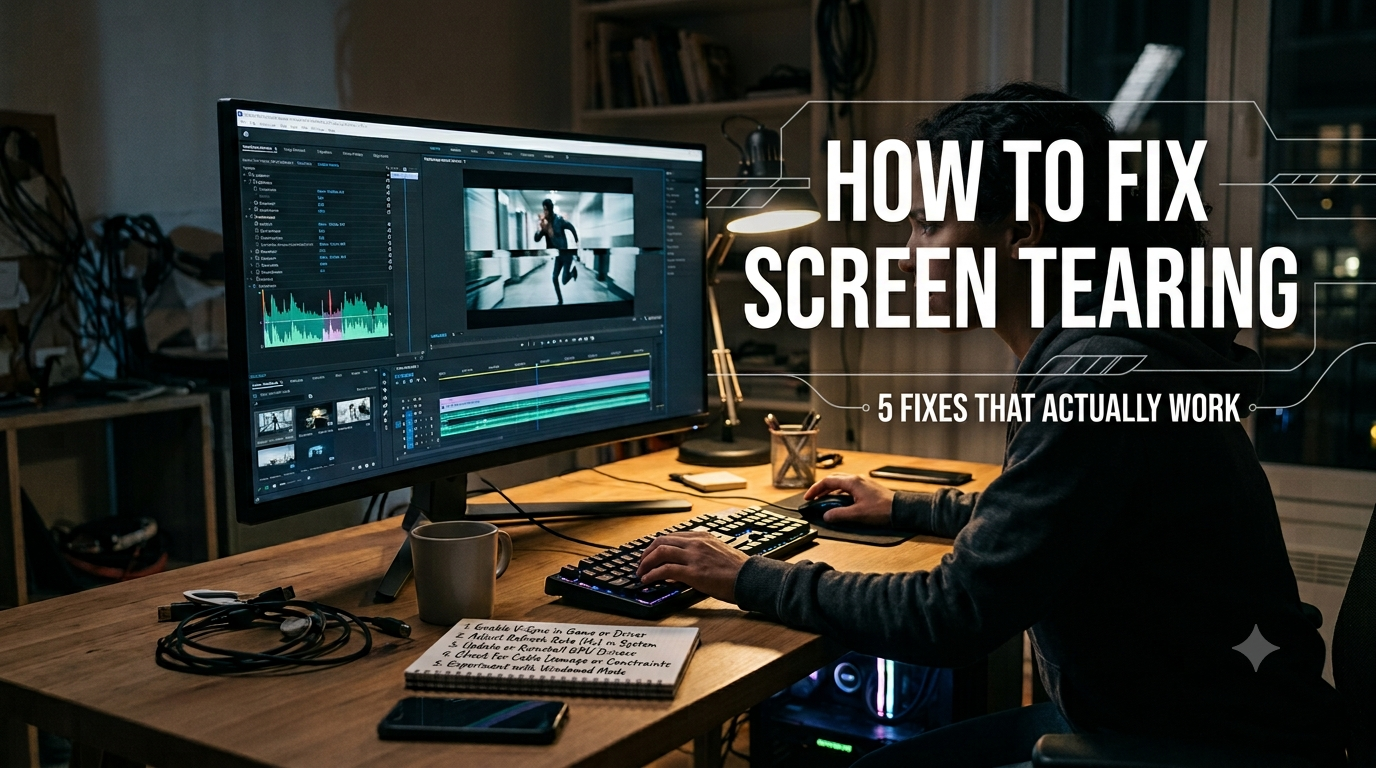
How To Fix Screen Tearing: 5 Proven Fixes That Work In 2026 If your screen shows a horizontal or diagonal split during gameplay or video playback, this guide explains how to fix screen tearing, whether the cause is gaming, browser video, or a mismatched cable. The fastest fix is usually enabling VSync, G-Sync, or FreeSync […]
How To Fix Screen Tearing: 5 Proven Fixes That Work In 2026
If your screen shows a horizontal or diagonal split during gameplay or video playback, this guide explains how to fix screen tearing, whether the cause is gaming, browser video, or a mismatched cable. The fastest fix is usually enabling VSync, G-Sync, or FreeSync in your graphics driver, or capping your frame rate at or below your monitor’s refresh rate.
Why Screen Tearing Happens
Screen tearing occurs when your GPU sends a new frame to the monitor before the monitor has finished drawing the previous one, so the display shows parts of two different frames at the same time. This mismatch usually happens when your graphics card renders frames faster than your monitor’s refresh rate, though it can also occur when the frame rate drops below the refresh rate during demanding scenes. Because the root cause is a timing mismatch rather than a hardware fault, fixing it is almost always about synchronizing frame delivery with the monitor’s refresh cycle rather than replacing equipment.
How To Fix Screen Tearing With VSync, G-Sync, Or FreeSync
Three synchronization tools address the timing mismatch directly, each with a different tradeoff:
| Method | How it works | Tradeoff |
| VSync | Locks frame rate to monitor refresh rate in software | Can add input lag, especially when frame rate spikes above the cap |
| G-Sync (NVIDIA) / FreeSync (AMD) | Monitor dynamically adjusts its refresh rate to match GPU output | Requires a VRR-capable monitor and a compatible cable |
| FPS cap | Limits frame rate a few frames below the monitor’s max refresh rate | Works alongside VRR for low input lag with no tearing |
For most modern setups with a variable refresh rate (VRR) monitor, combining G-Sync or FreeSync with an FPS cap set slightly below the monitor’s maximum refresh rate removes tearing with the least added input lag. If you enable G-Sync or FreeSync, turn off in-game VSync at the same time — running both together can cause stutter or conflicting frame pacing instead of a clean fix.
How To Fix Screen Tearing On NVIDIA GPUs
Open NVIDIA Control Panel, go to Display, then Set up G-SYNC, and enable G-SYNC for your monitor in both full-screen and windowed mode. If the option doesn’t visibly engage, check that “Monitor Technology” is set to G-SYNC Compatible rather than Fixed Refresh, since some displays need this confirmed manually. Exact menu wording can shift slightly between driver versions, so look for a similarly named G-SYNC toggle if your panel looks different.
How To Fix Screen Tearing On AMD GPUs
Open AMD Software: Adrenalin, go to the Display tab, and turn on Radeon FreeSync globally. AMD also lets you enable or override FreeSync per game from the Gaming tab, which is useful if tearing only appears in one title while others run fine. As with NVIDIA, disable any in-game VSync setting once FreeSync is active to avoid the two systems working against each other.
How To Fix Screen Tearing Without A VRR Monitor
If your monitor doesn’t support G-Sync or FreeSync, cap your frame rate a few frames below its fixed refresh rate using the game’s built-in frame limiter or your GPU driver’s frame rate limiter. This keeps the GPU from ever outrunning the monitor’s refresh cycle, which removes one of the two conditions that cause tearing in the first place. Pairing an FPS cap with VSync is the standard fallback when hardware-level adaptive sync isn’t available.
How To Fix Screen Tearing In Browsers And Video Playback
If tearing only shows up while watching videos in a browser rather than during gaming, the cause is often different: it frequently points to disabled or malfunctioning hardware acceleration rather than a GPU-to-refresh-rate mismatch. Enabling hardware acceleration in your browser’s settings, or updating your graphics driver, typically resolves this variant. Treating gaming tearing and video-playback tearing as identical problems is a common mistake, since the underlying mechanism and the fix differ.
How To Fix Screen Tearing Caused By Cables Or Drivers
Sometimes G-Sync or FreeSync options don’t appear at all because of the cable: adaptive sync requires DisplayPort or a sufficiently modern HDMI connection, and an older HDMI cable can silently block VRR from working. It’s also worth confirming your display resolution and refresh rate in your operating system’s display settings actually match what your monitor supports, since a mismatch here can trigger tearing independent of frame rate. An outdated or recently updated graphics driver is another easily overlooked cause, so updating to the latest stable driver is a reasonable step if tearing appeared right after a system update.
What To Do If The Problem Persists
If you’ve followed the steps above on how to fix screen tearing and it still appears, test with a different cable, and confirm the monitor’s on-screen display (OSD) adaptive sync toggle is genuinely enabled and not just present in the menu — this monitor-side setting is required in addition to the driver-side toggle, and many people miss it. You can also rule out GPU overclocking as a contributing factor by temporarily reverting to stock clocks. In rare cases, an older monitor without reliable VRR support may need replacement, but that’s a last resort after the software and connection checks above have been ruled out.
Now that you know how to fix screen tearing across gaming, video playback, and mismatched hardware, the right combination of sync setting and frame cap for your specific setup should resolve it in most cases.
Frequently Asked Questions
G-Sync or FreeSync generally causes less input lag than VSync because the monitor’s refresh rate adjusts to the GPU instead of forcing the GPU to wait, but VRR requires a compatible monitor and cable that VSync doesn’t need.
The most common reason is that the adaptive sync toggle in the monitor’s own OSD menu wasn’t enabled alongside the driver-side setting, or an older HDMI cable is blocking VRR from activating.
Yes, capping your frame rate a few frames below your monitor’s refresh rate prevents the GPU from outrunning the monitor’s refresh cycle, which removes one of the two conditions that cause tearing.
Yes, adaptive sync features like G-Sync and FreeSync require DisplayPort or a sufficiently modern HDMI cable, so an older or lower-spec cable can prevent VRR from working even if it’s enabled in software.
Video-only tearing is usually a separate issue from gaming tearing and often traces back to disabled or malfunctioning hardware acceleration in your browser rather than a GPU-to-refresh-rate mismatch.
Yes, running in-game VSync at the same time as G-Sync or FreeSync can cause conflicting frame pacing or stutter, so it’s best to disable VSync once adaptive sync is active.
It can be a contributing factor in some cases, though it’s a less common cause than a GPU/refresh-rate mismatch, and reverting to stock clocks is a reasonable troubleshooting step if other fixes don’t work.
Not usually. Software fixes like VSync, FPS caps, driver updates, and confirming adaptive sync is enabled on both the driver and monitor side resolve most cases; a monitor replacement is only necessary if the display lacks reliable VRR support.