







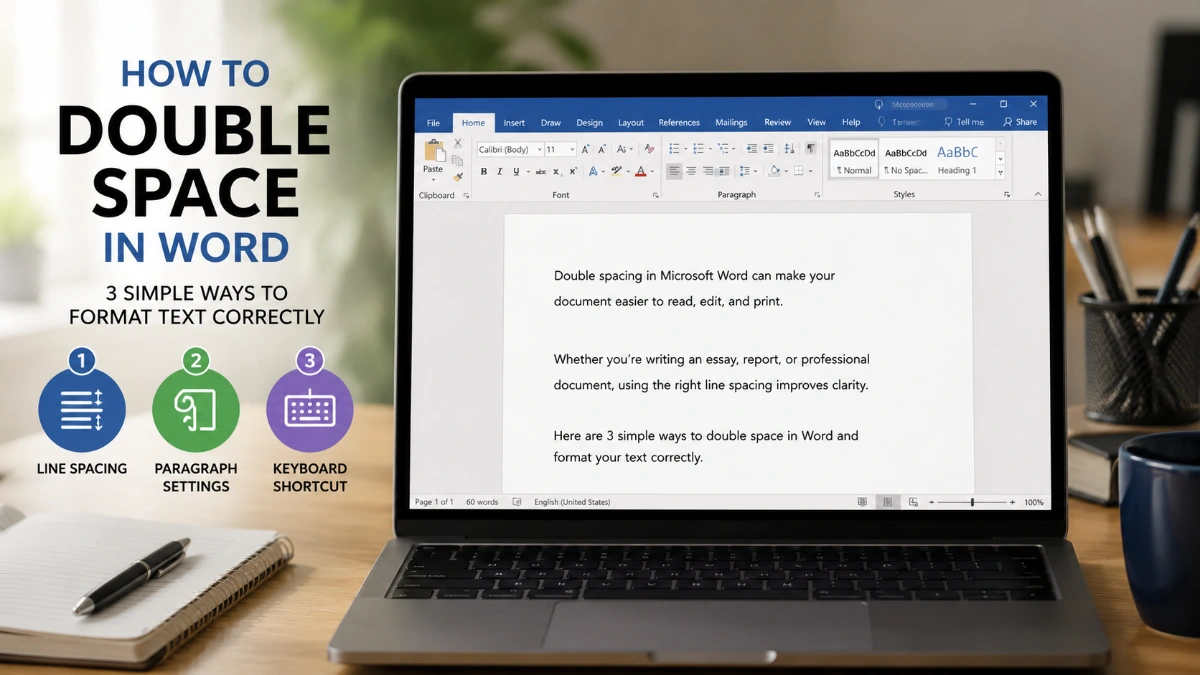
How to Double Space in Word: 3 Powerful Ways to Format Text Correctly To double-space selected paragraphs in Word, select the text, open Home, choose Line and Paragraph Spacing, and select 2.0. For an entire document in Word for Windows, use Design > Paragraph Spacing and choose a double-spacing option. Choose the right method The […]
How to Double Space in Word: 3 Powerful Ways to Format Text Correctly
To double-space selected paragraphs in Word, select the text, open Home, choose Line and Paragraph Spacing, and select 2.0. For an entire document in Word for Windows, use Design > Paragraph Spacing and choose a double-spacing option.
Choose the right method
The best method depends on what you need to format:
| Your goal | Best option |
| Double-space one paragraph or selected text | Use Home > Line and Paragraph Spacing |
| Double-space most or all of a document | Use Design > Paragraph Spacing |
| Remove unexpected blank-looking gaps | Check Before and After paragraph spacing |
| Reuse the same spacing in future documents | Modify the relevant Word style or set a default |
This decision prevents a common mistake: applying a document-wide setting when only selected paragraphs need adjustment.
Double-space selected text
This is the quickest way to handle how to double space in word when only part of your document needs a different line spacing.
- Select the paragraph or paragraphs you want to change.
- Go to the Home tab.
- Select Line and Paragraph Spacing in the Paragraph group.
- Choose 2.0.
To apply the change across the document in Word for Windows, press Ctrl + A first to select all text, then use the same paragraph-spacing controls.
Double-space an entire document
For a document that needs broadly consistent spacing, Word for Windows provides a document-level route:
- Open the Design tab.
- Select Paragraph Spacing.
- Choose the double-spacing option.
Afterward, review headings, lists, tables, text boxes, and any pasted sections. These elements can use separate formatting or styles, so they may need individual adjustment.
For most users, this is the fastest method for how to double space in word across a complete essay, report, or manuscript.
Control exact paragraph settings
Use the Paragraph dialog when the simple spacing command does not give you the expected result.
- Select the affected paragraphs.
- Go to Home > Line and Paragraph Spacing.
- Choose Line Spacing Options.
- In the Line spacing box, select Double.
- Check the Before and After fields.
- Select OK.
This route gives you separate control over the distance between lines and the extra space before or after each paragraph. That distinction is essential when how to double space in word produces a layout that looks too open.
Fix extra gaps between paragraphs
Double line spacing changes the distance between lines within a paragraph. It does not necessarily remove extra space around the paragraph itself.
| What you see | Likely setting to check | What to do |
| Lines are too close together | Line spacing | Set Line spacing to Double |
| Large blank gaps appear after paragraphs | Spacing After | Reduce the After value |
| Extra room appears before each paragraph | Spacing Before | Reduce the Before value |
| Only some paragraphs look different | Selection or paragraph formatting | Select the affected paragraphs and review their settings |
| Pasted text does not match surrounding content | Existing formatting or style | Review the paragraph settings and apply the intended formatting again |
This is why how to double space in word can involve more than selecting 2.0: line spacing and paragraph spacing are independent controls.
Make formatting reusable
If you repeatedly create documents that need the same spacing, modify the style used for your body text rather than changing each new paragraph manually.
- On the Home tab, find the relevant style in the Styles gallery.
- Right-click the style and choose Modify.
- Select the available double-spacing option, or use Format > Paragraph for more detailed line-spacing settings.
- Confirm the change for the current document or, where offered, for future documents based on the template.
For a recurring workflow, this approach makes how to double space in word a one-time setup decision instead of a repetitive formatting task
Set double spacing by default
If new Word documents should normally begin with double line spacing, change the default paragraph settings.
- Go to Home > Line and Paragraph Spacing.
- Choose Line Spacing Options.
- Select Double in the Line spacing box.
- Adjust Before and After if needed.
- Select Set as Default.
- Choose All documents based on the Normal template, then select OK.
Use this option carefully. It changes the starting formatting for future documents based on that template, not just the file currently open.
Read more: How to Double Space in Word: Fix Spacing Problems in 3 Simple Steps
Frequently Asked Questions
In Word for Windows, go to Design > Paragraph Spacing and choose a double-spacing option. You can also press Ctrl + A to select all text, then set the line spacing through the Home tab.
Yes. Choosing 2.0 in Word’s line-spacing controls applies double line spacing to the selected paragraphs.
Check the Before and After values in Line Spacing Options. Those controls add space around paragraphs separately from the distance between lines.
Yes. Click within or select the paragraph, open Home > Line and Paragraph Spacing, and choose 2.0.
Select the relevant text, open Home > Line and Paragraph Spacing, and choose another spacing option. Check paragraph-before and paragraph-after values if the document still looks overly spaced.
Yes. Modifying a Word style lets you apply double spacing consistently to text that uses that style.
It can, but headings, tables, text boxes, and pasted content may have separate formatting. Review those elements after applying a document-wide spacing option.